

Key Takeaways
- Default router passwords are publicly documented and should be changed immediately after setup.
- WPA3 encryption offers stronger protection than older WPA2 where your router supports it.
- Firmware updates patch security flaws that attackers actively exploit on unpatched routers.
- A separate guest network limits what any connected device can reach on your main network.
- Disabling features you do not use, such as remote management, reduces your attack surface.
Summary
18 items · 30 to 60 minutes
Why your home network deserves a security audit
Most people set up a home router once and never revisit it. The device sits behind a shelf or TV stand, connects devices automatically, and gets ignored until the internet stops working. That hands-off approach leaves predictable gaps that are straightforward to close.
The risks are real. Home routers are targeted by botnets, credential-stuffing tools, and automated scanners that probe millions of IP addresses per day. A compromised router can redirect your traffic, expose every device on the network, or quietly join a network used to attack others. None of that requires a sophisticated adversary.
The checklist below targets the settings and habits that produce the most meaningful improvement for the least effort. If you travel and connect to public hotspots regularly, see our guide on public Wi-Fi safety while traveling for additional steps that apply outside your home network.
Admin access and passwords
Encryption and network settings
Firmware and updates
Guest network and device isolation
Unused features and remote access
Connected device review
What you need before you start
You do not need to be technically fluent to work through this checklist. You do need a few things in place before logging into your router's admin panel.
Router admin credentials
Required to log into your router's configuration panel where all settings are changed.
A device connected to your home network
Used to access the router admin panel through a web browser.
Password manager
Stores your new admin and Wi-Fi passwords securely so you can use complex, unique credentials.
Router manufacturer's support page
Used to check firmware release notes and confirm whether your router model still receives security updates.
Your router's admin address is typically printed on a label attached to the device itself, along with the default username and password. Common addresses are 192.168.0.1 or 192.168.1.1, though yours may differ. Type that address into any browser on a device connected to your home network.
Change credentials before anything else
Do not proceed with other settings until you have changed the admin password. Default credentials for nearly every router model are published online and are the first thing automated scanners try. If someone gains admin access, every other security setting you apply can be undone in seconds.
Once you have access, work through each group in the checklist methodically. Some changes, particularly password and encryption changes, will disconnect your devices temporarily. Plan for a few minutes of reconnection after those steps.
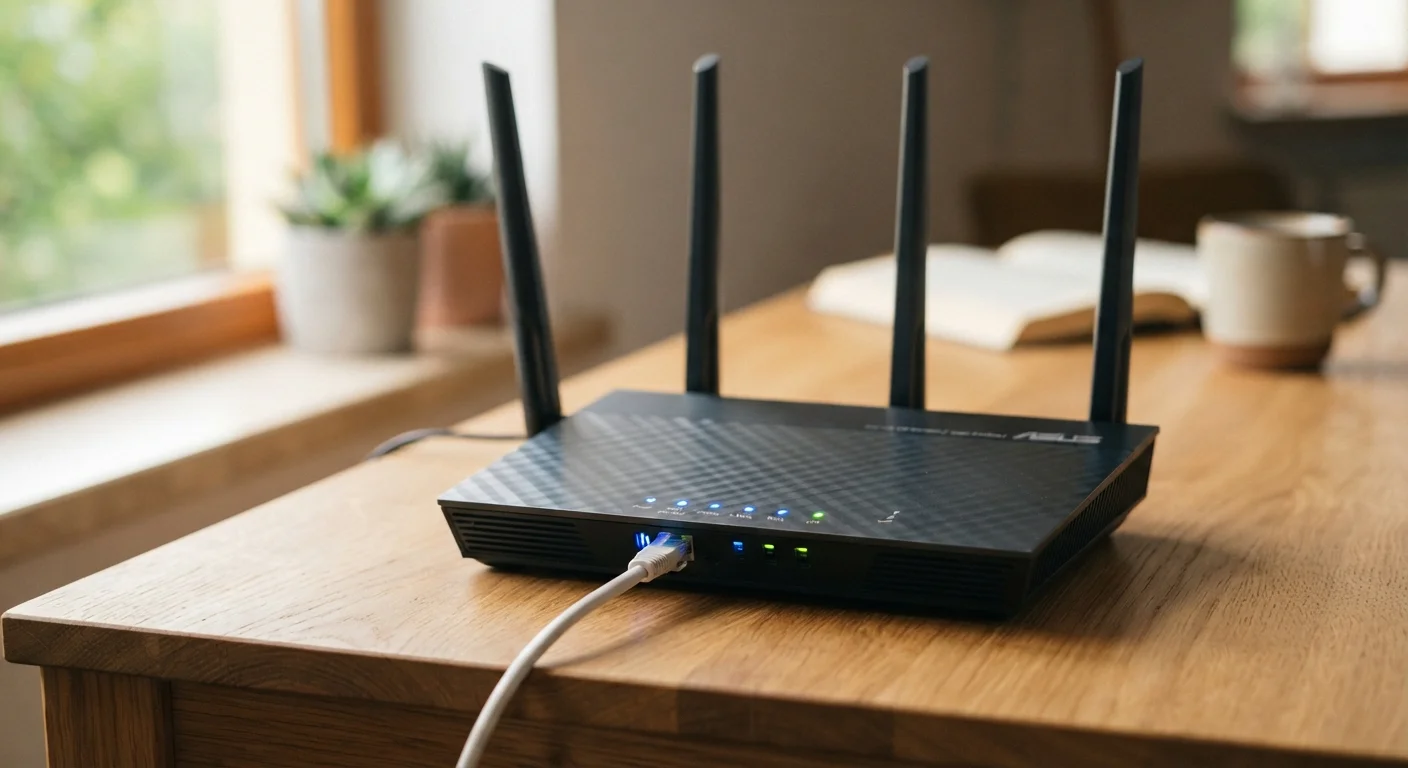
Router placement also affects more than just speed. A centrally positioned router is harder for outside devices to detect at useful signal strength. Router placement has a bigger effect on your network than most people expect, and good positioning pairs well with the security steps here.
After the checklist: building good habits
A one-time audit improves your security posture significantly, but a few ongoing habits keep it from slipping back.
Check for firmware updates every three to six months if your router does not update automatically. Review connected devices every few months to spot anything unfamiliar. If you see a device you do not recognize, change your Wi-Fi password and reconnect only the devices you own.
When you replace a router, do a factory reset on the old one before recycling or selling it. This removes stored credentials and network configuration data.
Renters and apartment dwellers sometimes wonder whether their ISP-provided router can be fully configured. Most can, though some ISPs restrict access to certain settings. Contact your provider if you cannot locate the admin panel or if key settings appear greyed out.