

| Default admin address | 192.168.1.1 or 192.168.0.1 (varies by manufacturer) |
| Panel access scope | Local network only by default |
| 2.4 GHz vs. 5 GHz | 2.4 GHz: longer range, lower speed; 5 GHz: shorter range, higher speed |
| Firmware update frequency | Check every few months for security patches |
| DHCP reservation use case | Assign a fixed IP to printers, smart TVs, or cameras |
| Default MTU size | 1500 bytes (suitable for most home connections) |
How to access your router's admin panel
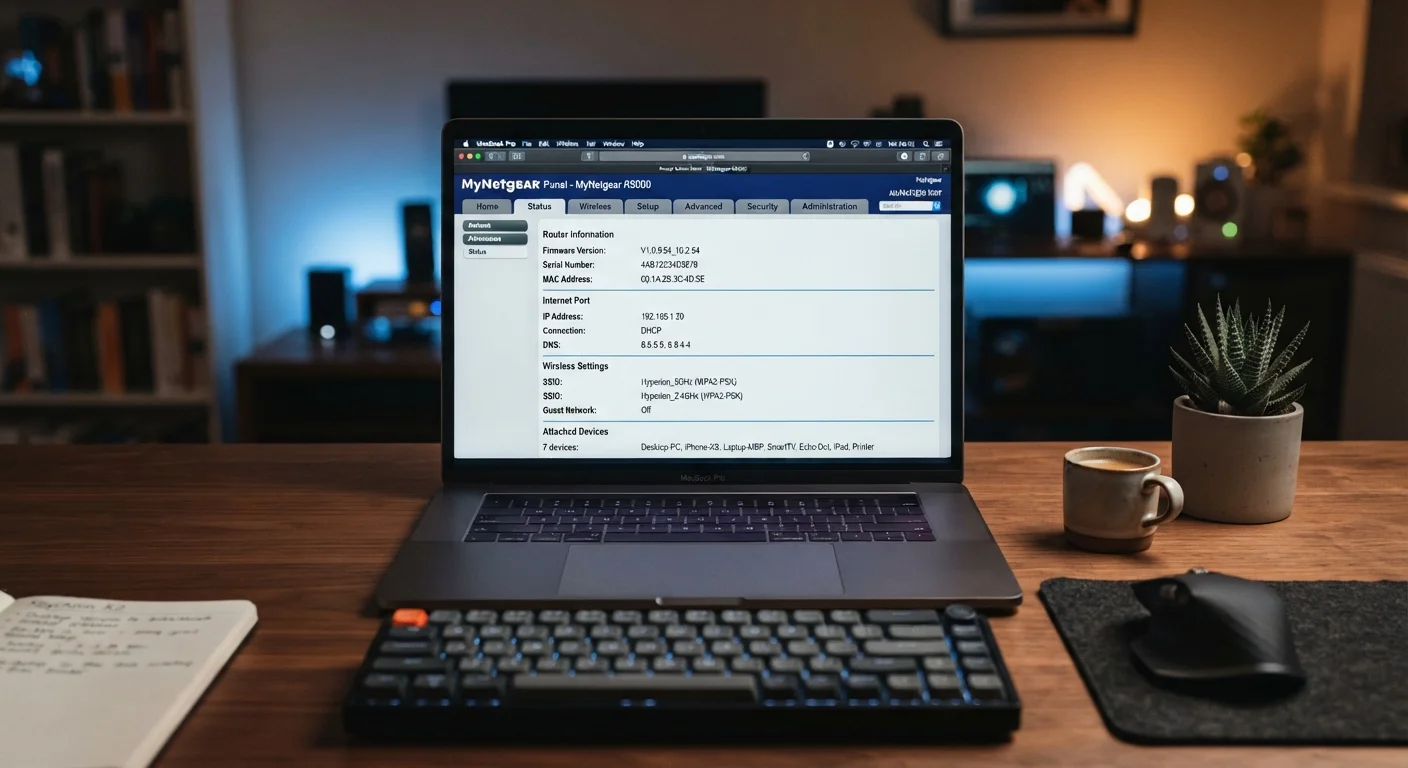
Your router's admin panel is a web-based interface that lets you view and change network settings. To open it, type your router's IP address into a browser address bar. The address is usually 192.168.1.1 or 192.168.0.1, though some routers use 10.0.0.1. The exact address is printed on a label on the router itself.
You will be prompted for a username and password. If you have never changed these, check the same label. Many routers ship with the username admin and a printed default password. Change these defaults as soon as you log in, because anyone on your network who knows the defaults could alter your settings.
The panel is only accessible from within your home network by default, not from the open internet, which limits the risk of outside interference.
| Default admin address | 192.168.1.1 or 192.168.0.1 (varies by manufacturer) |
| Panel access scope | Local network only by default |
| 2.4 GHz vs. 5 GHz | 2.4 GHz: longer range, lower speed; 5 GHz: shorter range, higher speed |
| Firmware update frequency | Check every few months for security patches |
| DHCP reservation use case | Assign a fixed IP to printers, smart TVs, or cameras |
| Default MTU size | 1500 bytes (suitable for most home connections) |
Core settings and what they control
Router admin panels vary by manufacturer, but most share the same categories of settings.
Wireless settings
This section controls your Wi-Fi network name (the SSID), password, and the radio band in use (2.4 GHz or 5 GHz). The 2.4 GHz band has longer range but slower speeds; the 5 GHz band is faster but shorter in reach. Some routers let you broadcast both simultaneously. You can rename your network here and change the Wi-Fi password without needing to call your internet provider.
Security and firewall
Most panels include a firewall toggle and a setting called NAT (Network Address Translation). NAT is almost always active by default and is what allows multiple devices to share one internet connection. Turning it off is rarely necessary for home users. The firewall setting filters incoming traffic; leaving it enabled is the right choice for nearly all households.
DHCP settings
DHCP is the system that automatically assigns IP addresses to each device on your network. The router acts as a DHCP server, handing out addresses from a defined range called a pool. You can adjust the pool size here, but the default range is sufficient for most homes. If you need a device, such as a printer or smart TV, to always receive the same IP address, you can set a DHCP reservation using that device's MAC address.
DNS settings
DNS translates website names into IP addresses. Your router forwards DNS queries to servers provided by your internet service provider by default. Some users choose to enter alternative DNS server addresses in this field for potentially faster lookups or to use a provider with content filtering. Any change here affects every device on the network at once.
Port forwarding
Port forwarding lets outside traffic reach a specific device inside your network, which is sometimes needed for online gaming, remote desktop access, or certain security cameras. Each rule specifies an external port, the internal device's IP address, and the internal port. Only create rules for services you actually use. Unused open ports are an unnecessary exposure.
Firmware update
Firmware is the software running on the router itself. The admin panel usually has a section showing the current firmware version and a button to check for or install updates. Firmware updates frequently include security patches. Checking this section every few months is a straightforward maintenance habit.
Settings to leave alone
Some options in the panel are best left at their defaults unless you have a specific reason to change them.
- MTU size: Controls the maximum packet size transmitted. The default (usually 1500 bytes) works correctly for nearly all connections. Changing it without a clear reason can cause slow or broken browsing.
- WAN settings: These control how your router connects to your ISP. Your provider configures this during setup. Changing WAN connection type or credentials can drop your internet connection entirely.
- Bridge mode: Disables the router's NAT and DHCP functions, turning it into a pass-through device. This is useful only when adding a second router to a network. Enabling it by accident will disconnect all your devices.
If you are expanding your network beyond a single router, the differences between mesh systems and standard routers are worth understanding before you change any bridging or access-point settings.
SSID
Service Set Identifier: the name your Wi-Fi network broadcasts. It is what you see in the list of available networks on your phone or laptop.
DHCP
Dynamic Host Configuration Protocol. A system that automatically assigns a unique IP address to each device that joins your network, so you do not have to configure addresses manually.
DNS
Domain Name System. It translates human-readable website addresses (like example.com) into numerical IP addresses that routers and servers use to direct traffic.
Port forwarding
A rule that directs incoming internet traffic on a specific port to a chosen device inside your home network. It is needed for some online games, cameras, or remote-access tools.
Firmware
The built-in software that runs your router. Manufacturers release firmware updates to fix security vulnerabilities and improve performance.
NAT
Network Address Translation. The process that allows all devices on your home network to share a single public IP address assigned by your internet provider.