

Our Verdict
Tablets and laptops have converged in processing power, but their operating systems, input methods, and software ecosystems still produce genuinely different working experiences. The right choice depends on the tasks you do most, not the device that looks the most capable on paper.
| Best for | Recommended |
|---|---|
| Reading, annotating documents, video calls, and light note-taking on the go | Tablet |
| Writing long-form content, running desktop software, or managing complex files | Laptop |
| Creative work requiring a stylus, such as illustration or design markup | Tablet |
| Coding, data work, or any workflow requiring multiple open windows | Laptop |
Why the line between tablets and laptops has blurred
Modern tablets can run productivity apps, connect to keyboards, and handle video editing. Laptops have gotten thinner and some now include touchscreens. The hardware overlap is real, but hardware alone does not determine how useful a device is for a given task. The operating system, the app library, and the physical interaction model all shape what you can actually do.
Tablets run mobile operating systems originally built for touch. Laptops run desktop operating systems built around a keyboard and pointer. That foundational difference shapes file management, window behavior, peripheral support, and software depth, even when both devices carry similar processors.
Where tablets work well
Tablets are well suited to tasks that are mostly about consuming or reviewing content. Reading long documents, watching training videos, participating in video calls, and annotating PDFs with a stylus are all activities where a tablet's touchscreen and portability are genuine advantages over a laptop.
For people who do a lot of work from a couch, a bed, or a cramped seat, holding a tablet is more practical than balancing a laptop. Battery life on tablets also tends to be longer during light use, partly because mobile operating systems are more aggressive about limiting background processes.
Light content creation, including drafting short emails, sketching wireframes, or taking handwritten notes, is also practical on a tablet, particularly with a stylus. The stylus input on modern tablets is accurate enough for markup work that would require a separate drawing tablet on a laptop setup.
Test your core apps before switching
Before committing to a tablet as a productivity device, check whether the specific apps you rely on daily have full-featured tablet versions. Some desktop applications have mobile counterparts that cover most functions, but others are stripped down or absent entirely. Checking app availability first saves you from discovering gaps after the fact.
Where laptops hold an advantage
Laptops pull ahead when work involves many open windows, complex file structures, or software that does not exist in a mobile app store. Spreadsheets with heavy formulas, code editors with plugins, video editing timelines with multiple tracks, and project management tools with desktop clients all run more completely on a laptop.
Window management is the clearest example. Desktop operating systems let you snap, resize, and layer windows freely. Tablet operating systems have improved split-screen modes, but they still impose limits on how many apps can share the screen and how those apps interact with each other.
File handling is another gap. Understanding how RAM and storage work helps here: tablets often have less RAM than laptops at similar price points, which affects how many apps stay active in memory. Desktop file systems also give you more control over folder structures and file types, which matters for anyone managing large libraries of assets or documents.
| Criterion | Tablet | Laptop | |
|---|---|---|---|
| Operating system depth | Mobile OS, touch-first | Desktop OS, pointer and keyboard | |
| Window management | Limited split-screen | Full multi-window control | |
| Stylus/touch input | Native, precise | Available on some models only | |
| Software library | App store, mobile apps | Full desktop applications | |
| Typical battery life (light use) | Long, often 10 to 14 hours | Varies, typically 6 to 12 hours | |
| File system access | Restricted by default | Full access | |
| Portability | Lighter, easier to hold | Heavier, lap or desk use | |
| Peripheral/port support | Usually limited ports | More ports on most models |
The keyboard question
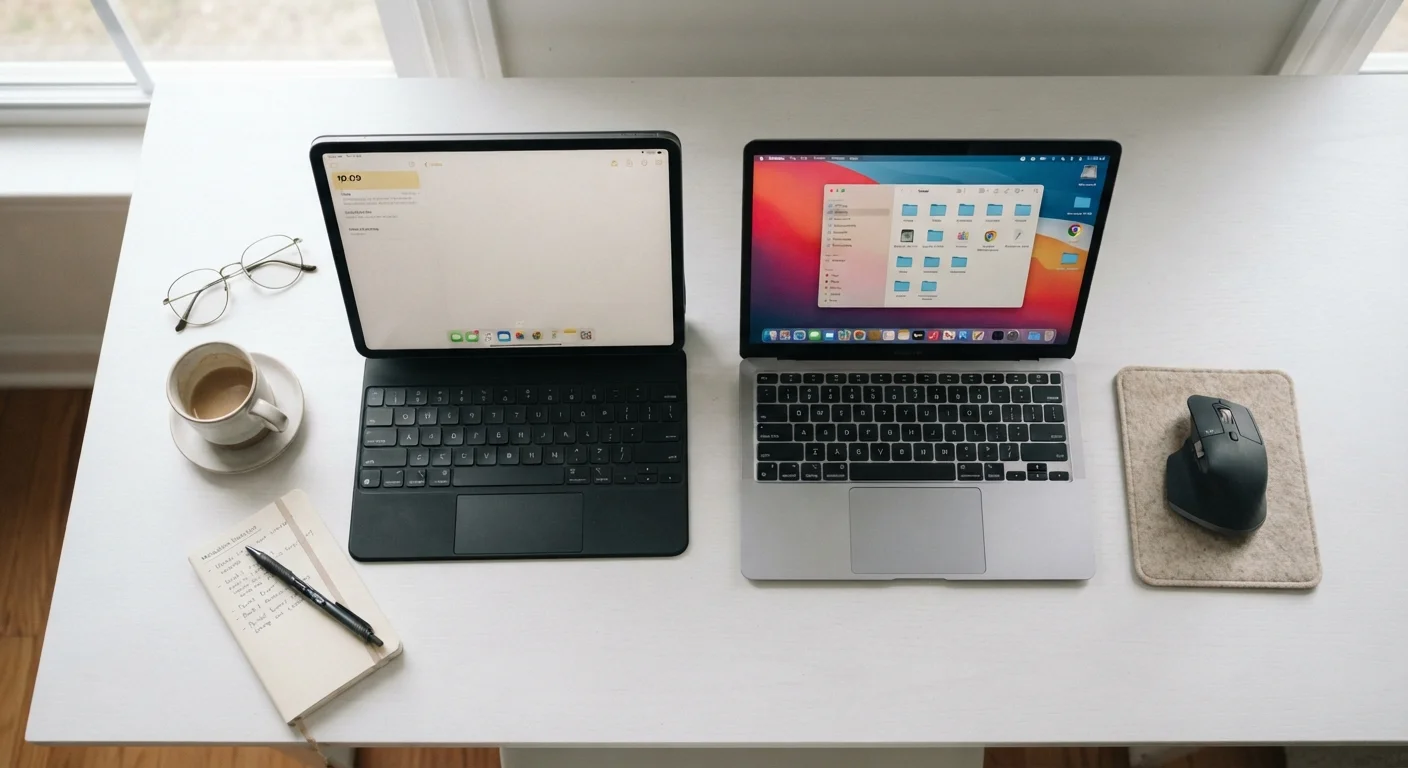
Adding a keyboard to a tablet is a common workaround, and it works reasonably well for typing. What it does not change is the operating system underneath. You get keyboard input, but you still have a mobile OS managing your windows, your storage access, and your app options. For someone who types a lot but does not need complex software, that trade-off is fine. For someone who expects a laptop-equivalent experience, it usually falls short.
Laptop keyboards also tend to offer better travel (the physical depth of each key press) and more consistent typing feedback than tablet keyboard attachments, which vary widely in quality and rigidity.
Matching form factor to your actual tasks
A practical way to decide is to list the five things you do most on a computing device. If most items on that list involve reading, light writing, video calls, or drawing, a tablet covers them well. If the list includes managing large files, running specialized desktop software, or working across many open windows at once, a laptop is the more functional choice.
Portability weight matters too. Tablets with keyboards are lighter than most laptops, which is meaningful if you carry your device through airports or between buildings daily. If you work at a desk most of the time, that weight difference is less relevant.
Some people use both: a laptop for primary work and a tablet for travel or leisure. That setup has a real cost, but it avoids the compromises of asking one device to do everything.