

Key Takeaways
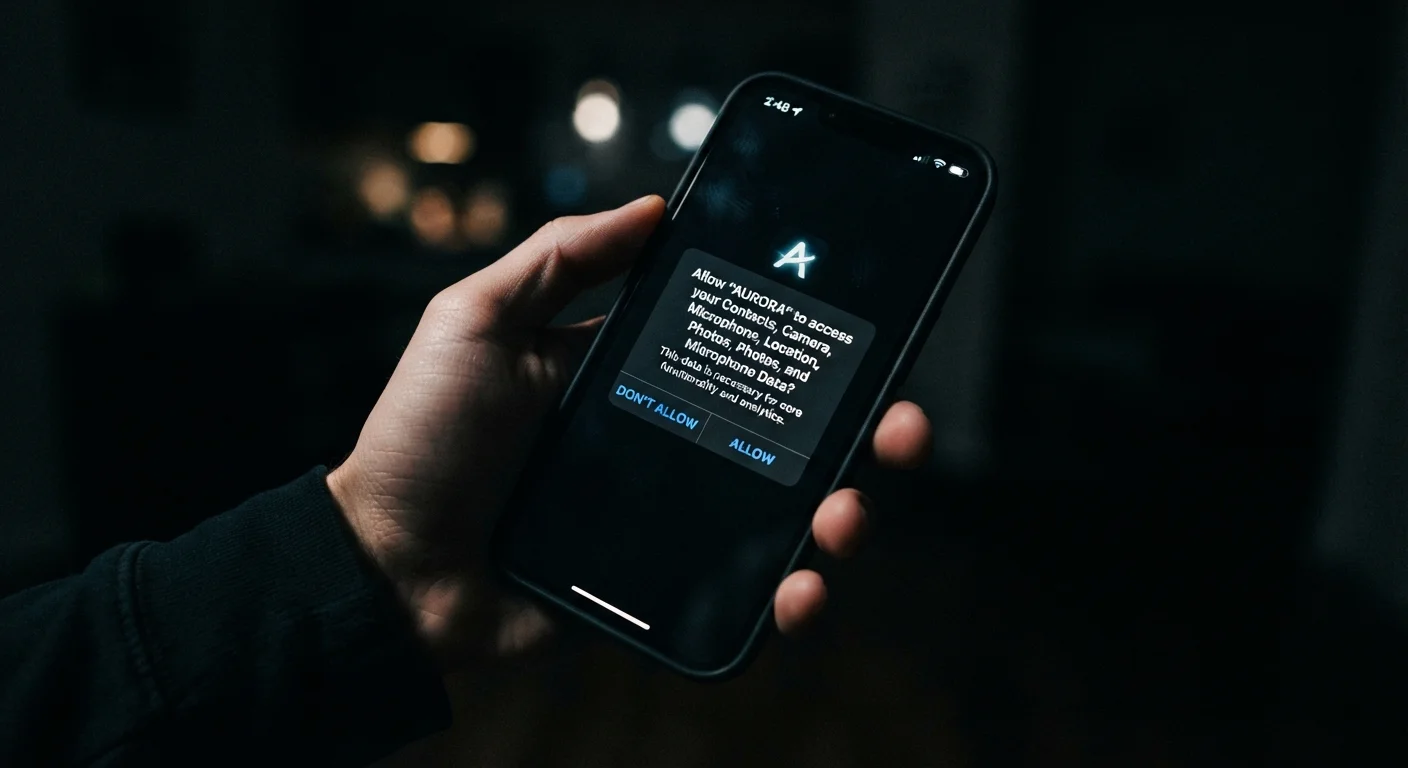
- Apps that request permissions unrelated to their core function are a reliable warning sign.
- Vague or hard-to-find privacy policies suggest an app has something to hide.
- Excessive background activity can mean an app is collecting data you never approved.
- You can audit installed apps right now using built-in phone settings on iOS and Android.
Summary
18 items · 15 to 30 minutes
Why data mishandling is easy to miss
Most apps ask for your trust quietly. You tap "Accept," skip the privacy policy, and move on. The problem is that poor data practices rarely announce themselves. They hide inside dense legal text, ambiguous permission requests, and settings buried three menus deep.
The checklist below gives you a concrete way to audit any app on your device. It covers what to look for in permission requests, privacy policies, data-sharing behavior, and account controls. You do not need technical expertise to use it. What you need is a few minutes and the willingness to look closer than most people do.
For a broader picture of how to get your digital tools working for you rather than against you, see this guide to organising your digital life.
Permission requests
Privacy policy review
Background activity and data collection
Account and data controls
What to do when you spot a red flag
Finding one warning sign does not automatically mean an app is malicious. Some apps have poor defaults but allow you to tighten them. Others have opaque policies because their legal teams wrote for compliance rather than clarity. Context matters.
That said, a pattern of red flags is a different situation. If an app fails on permissions, policy transparency, and data-sharing controls at the same time, the reasonable move is to delete it and find an alternative. Revoke its permissions first through your phone's settings so any residual background access stops immediately.
Revoking permissions does not delete collected data
Turning off an app's permissions in your phone settings stops future collection but does not remove data the app has already gathered. To request deletion of stored data, you need to use the in-app account deletion process or submit a data deletion request directly to the company. Check the privacy policy for the specific process required.
Battery drain and background activity connect here too. Apps that run constantly in the background to collect location or usage data are often the same ones draining your battery. Understanding why some apps drain your battery faster can help you identify which apps are active when they should not be.
One broader pattern worth noting: the same instinct that helps you spot a misleading app privacy claim also helps you evaluate other kinds of online information. Common pitfalls when reading health information online covers that same critical-reading skill in a different context.
Tools you will need
No third-party software is required to complete this checklist. The most useful tools are already on your phone.
iOS Privacy settings (Settings > Privacy & Security)
Review and revoke per-app permissions for location, camera, microphone, contacts, and more.
Android Permission Manager (Settings > Privacy > Permission Manager)
See which apps hold each type of permission and change access levels without uninstalling.
iOS Battery usage panel (Settings > Battery)
Identify apps with high background activity that could indicate unauthorized data collection.
Android Battery usage panel (Settings > Battery > Battery Usage)
Check which apps consume power in the background relative to their actual foreground use.
App store privacy labels (App Store or Google Play listing)
Get a developer-reported summary of what data the app collects and how it is linked to your identity.