

Key Takeaways
- Most digital overwhelm comes from too many apps competing for attention, not from any single app being difficult to use.
- Sorting apps into four functional categories makes decisions about what to keep, move, or delete much clearer.
- Turning off non-essential notifications is one of the highest-impact changes a new app user can make.
- A consistent daily check-in routine, even five minutes long, keeps digital tools from piling up against you.
Start here
Why digital clutter builds up so fast
Next
The four categories every app falls into
Then
Setting up a home screen that actually works
When you're ready
Getting notifications under control
Finish with
Building a simple daily digital routine
Why digital clutter builds up so fast
Most people do not decide to have a cluttered phone. It happens gradually. You install an app for a specific task, forget it exists, then install something similar six months later. Notifications accumulate. Home screens fill up. Eventually, finding the tool you actually need takes longer than it should.
The pattern is predictable because app stores and services are designed to encourage installation. Signing up for a new service often means downloading an app. That app then wants permission to send you alerts. Before long, your attention is being split across dozens of products competing to appear relevant to you.
The good news is that getting organized does not require a major technical project. It requires a few deliberate choices about what you keep, where you put it, and what you allow to interrupt you.
The four categories every app falls into
A useful first step is sorting every app on your device into one of four buckets:
App permissions
The access rights you grant an app when you install or first open it, such as access to your camera, location, or contacts. You can review and change these in your phone's settings at any time.
Push notification
An alert an app sends to your phone even when you are not using it. Push notifications appear as banners, sounds, or badge numbers on the app icon.
Home screen
The main screen you see when you unlock your phone. It holds app icons and widgets, and is the first place you look when reaching for a tool.
Focus mode
A built-in phone setting that limits which apps can send notifications or be used during a chosen time, such as during sleep or work hours.
App folder
A grouped container on your home screen that holds multiple app icons under one label. Folders reduce visual clutter and keep related apps together.
- Daily tools: Apps you open most days, such as messaging, calendar, or maps.
- Occasional tools: Apps you use a few times a month, such as a travel booking app or a recipe reference.
- Situational tools: Apps you need only in specific circumstances, such as a boarding pass app or a government service portal.
- Unused apps: Apps you have not opened in 30 days and cannot identify a future reason to open.
Daily tools belong on your home screen. Occasional tools belong in a folder or on a secondary screen. Situational tools can stay installed but do not need prime real estate. Unused apps are candidates for deletion. This sorting process alone removes a large amount of visual noise.
Setting up a home screen that actually works
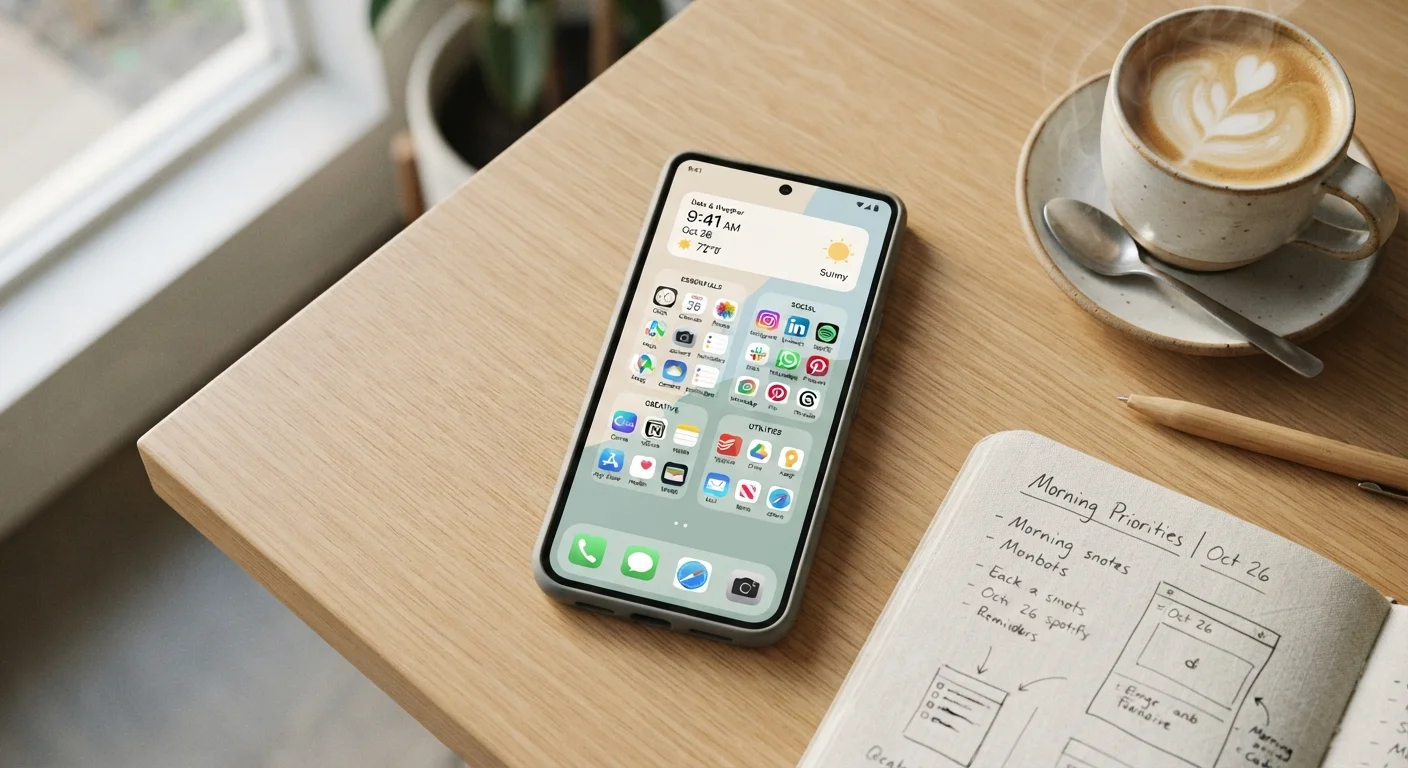
Your home screen should show the five to eight apps you reach for every day, nothing more. Everything else can live one swipe away or inside a folder.
A common approach is to organize by function rather than by app type. A folder labeled 'Finance' might hold your banking app, budgeting tool, and payment app. A folder labeled 'Health' might hold your fitness tracker, sleep log, and any wellness apps you use. This structure means you always know where to look, even when you cannot recall an app's exact name.
Widgets, the small information panels many phones support, work well for apps where glancing at data is more useful than opening the app. A calendar widget showing your next appointment, or a weather widget showing today's forecast, reduces the number of times you open and close apps just to check one piece of information.
If you find yourself often unable to locate an app, use your phone's built-in search function rather than scrolling. Training yourself to search first is faster than reorganizing your home screen repeatedly.
Getting notifications under control
Start with your notification settings
Before reorganizing any apps, go to your phone's notification settings and turn off all non-essential alerts. This single step reduces the constant interruptions that make digital tools feel overwhelming. You can always re-enable notifications for specific apps once you have a clearer picture of what actually needs your attention.
Most apps request notification permission immediately after installation. Accepting by default is one of the main reasons phones become noisy and distracting over time.
A practical framework is to allow notifications only from apps that require a time-sensitive response. Messaging apps from people you communicate with regularly are a good example. A shopping app sending you promotional alerts is not. Social media apps, news apps, and most games do not need to interrupt you in real time.
On both iOS and Android, you can review and revoke notification permissions in your phone's system settings without uninstalling the app. This is worth doing for every app currently on your device, not just new ones.
Focus modes (available in both major mobile operating systems) let you schedule quiet periods automatically. Setting one for sleeping hours and one for focused work time takes about five minutes and removes the need to manually silence your phone each time.
Check permissions before granting access
When you install a new app, it may request access to your contacts, location, microphone, or camera. Grant only what the app genuinely needs to function. An app that requests location access but has no mapping or local-search feature is worth a second look. See signs an app may be mishandling your data before approving permissions you are unsure about.
Building a simple daily digital routine
Apps are tools. Like any tool, they produce better results when used with intention rather than out of habit or reflex. A short daily routine helps you stay on top of your digital tasks without letting them expand to fill all available time.
A straightforward structure looks like this: check time-sensitive messages once in the morning and once in the afternoon. Process your task list or calendar at the start of your day. Spend no more than a set window on any app that is primarily recreational. At the end of the week, delete any apps you did not open.
Some people find that pairing digital habits with existing routines helps them stick. Checking your calendar while having coffee, or reviewing your task list before bed, uses an existing anchor rather than creating an entirely new behavior. The same principle applies to journalling apps. If you use one for reflection or planning, attaching it to a moment you already have works better than treating it as a separate commitment. For approaches to structured self-reflection that go beyond simple lists, see journalling methods that support mental clarity.
The goal is a setup where your apps work for you on a predictable schedule, rather than pulling your attention whenever they choose.
Digital organization is personal
There is no single correct way to structure your apps or schedule your digital time. The frameworks here are starting points. Adjust them to fit how you actually work and what genuinely causes you friction, rather than following any system rigidly.