

Key Takeaways
- Your modem connects your home to the internet; your router distributes that connection to your devices.
- Most home networks need only a modem, a router, and an active internet service plan.
- Changing your router's default password and network name are the two most important security steps.
- Placing your router in a central, elevated location improves signal coverage across your home.
- Most connection problems are solved by power-cycling the modem and router in the correct order.
Start here
What you need before you start
Build your knowledge
Understanding modems and routers
Take action
Setting up your router step by step
Stay safe
Securing your network
Solve problems
Troubleshooting common problems
What you need before you start
Setting up a home network from scratch requires three things: an active internet service plan from a provider in your area, a modem compatible with that provider, and a router to distribute the connection. Some ISPs also require a technician visit to activate your line before any home setup can begin, so confirm your service is active first.
You will also need an Ethernet cable (usually included with your router or modem) to connect the two devices together. A laptop or phone is all you need to complete the configuration steps.
Modem
A device that translates your internet service provider's signal into a format your home devices can use. It physically connects to the wall jack or coax outlet.
Router
A device that takes the internet connection from your modem and shares it wirelessly (and through wired ports) to all the devices in your home.
SSID
The name of your Wi-Fi network, visible when you scan for available connections on a phone or laptop.
WPA2 / WPA3
Security protocols that encrypt the data traveling over your Wi-Fi network. WPA3 is newer and stronger; WPA2 is still widely accepted as adequate.
Default gateway
The IP address you type into a browser to access your router's settings page, typically something like 192.168.1.1.
DHCP
A setting on your router that automatically assigns a unique address to each device that joins your network, so devices do not conflict with each other.
Understanding modems and routers
The modem is the device that talks to your ISP. It plugs into the coaxial or phone-line jack on your wall and receives the internet signal coming into your home. It has one job: convert that signal into a standard internet connection that a router can use.
The router takes that single connection and splits it across every device in your home, whether by Wi-Fi or through a physical Ethernet port. It also manages traffic between those devices and handles the local addresses each device needs to function on your network.
Combo gateway devices work differently
Some internet service providers supply a single device that acts as both modem and router. If you rent or receive a device from your ISP, check whether it already broadcasts a Wi-Fi network. In that case, you may not need a separate router, though you can still add one if you want more control over your network settings.
Setting up your router step by step
Start with everything powered off. Connect the modem to the wall outlet, then run an Ethernet cable from the modem's output port to the port labeled WAN or Internet on the back of the router. Plug the modem in first and wait about 60 seconds for it to fully connect to your ISP before powering on the router.
Once the router is on and its indicator lights stabilize (usually a solid or slowly blinking light), open a browser on your phone or laptop and type the default gateway address printed on the router's label into the address bar. This opens the router's admin panel.
From the admin panel, you can rename your Wi-Fi network (the SSID) to something that does not reveal the router model, set a strong Wi-Fi password, and change the admin login password. Walk through any setup wizard the router provides, then save your changes.
Write down your network details
After setup, record your network name, Wi-Fi password, and router admin password on paper and store it somewhere accessible. If you need to reconnect a device or help a guest log in, you will have everything in one place without digging through settings menus.
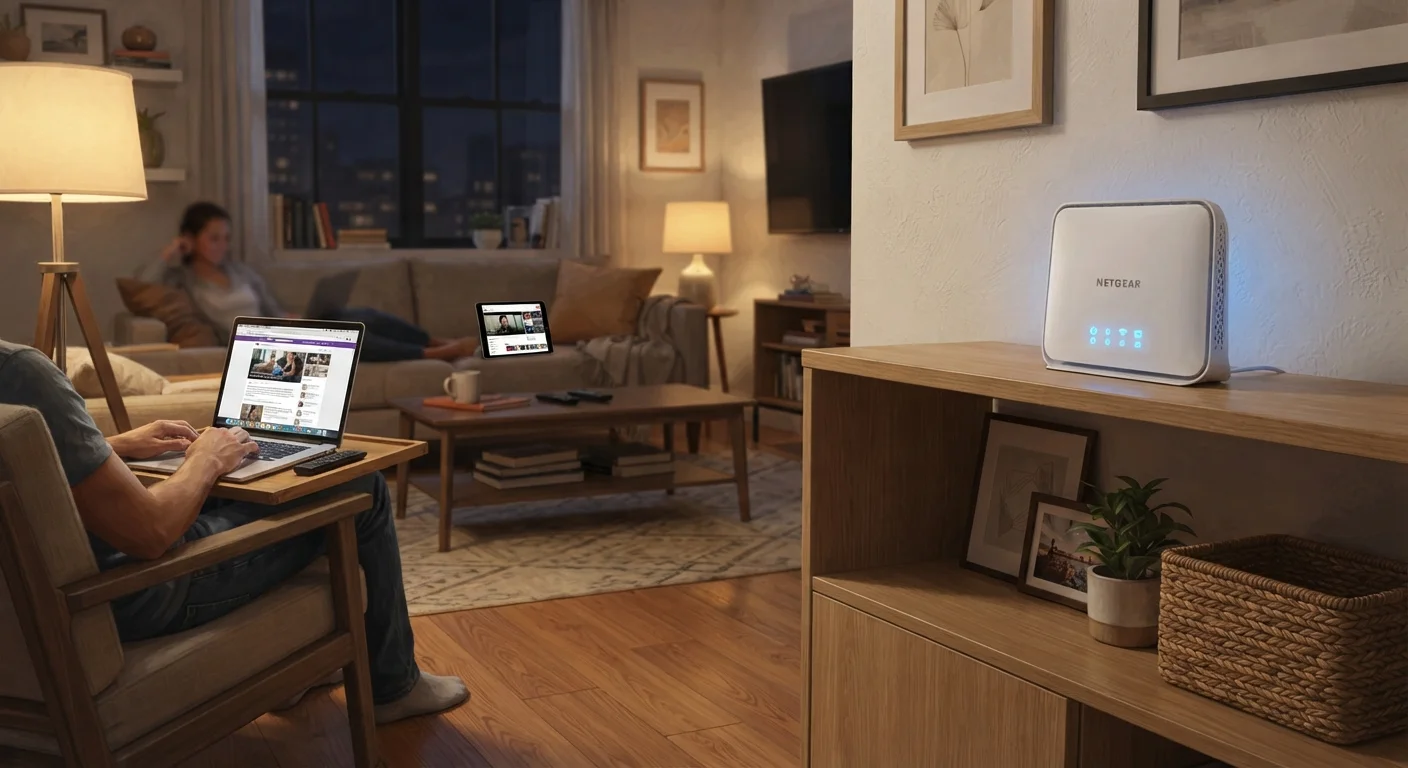
For better coverage, place the router as close to the center of your home as possible, elevated off the floor. Thick concrete walls and appliances that emit radio frequency signals, such as microwave ovens, can reduce Wi-Fi range significantly.
Securing your network
Changing the default admin password is the single most important security step. After that, confirm your Wi-Fi password uses WPA3 or WPA2 encryption. Most routers manufactured in the last five years support both; WPA3 is worth choosing if all your devices support it.
Never keep the router's default admin password
Router manufacturers ship devices with the same default login credentials across thousands of units. Leaving those defaults in place means anyone who can reach your network's settings page can change your configuration. Change the admin password before you do anything else.
Check whether your router's firmware is up to date. Firmware (the software built into the router) receives security patches over time. The update option is usually in the admin panel under a section labeled Administration or Advanced. Many newer routers can apply updates automatically.
If you have guests who need internet access, consider enabling a guest network. This creates a separate Wi-Fi network that keeps your main devices isolated from any guest device that might have security issues.
Troubleshooting common problems
When devices cannot reach the internet, the first step is a power cycle: unplug the modem, wait 30 seconds, plug it back in, and wait for it to fully reconnect. Then restart the router. This clears temporary errors in both devices and resolves a large share of connectivity problems.
If one room has weak signal, moving the router toward that area or raising it to a shelf can help. Walls, especially those containing metal studs or concrete, absorb Wi-Fi signal. For a large home, a mesh network system (multiple router nodes placed throughout the space) distributes coverage more evenly than a single router.
If a specific device cannot connect, forget the network on that device and reconnect by entering the Wi-Fi password again. This clears any corrupted connection profile stored on the device. If the device still cannot connect after that, confirming the device's Wi-Fi setting supports the frequency band your router broadcasts (2.4 GHz or 5 GHz) is worth checking in the router's admin panel.