

Key Takeaways
- Most built-in notes apps support folders, tags, and search filters that go largely unused.
- Checklists and formatting tools inside notes apps reduce the need for separate productivity apps.
- A consistent naming or tagging habit makes any notes system dramatically easier to search.
- Locking individual notes protects sensitive information without needing a separate secure app.
- Sharing a note directly with others replaces many short back-and-forth messages.
What you will need
Why your notes app does more than you think
The notes app on your phone was pre-installed and easy to ignore. Most people use it the way they used paper sticky notes: one long, undifferentiated list of random text. That works until the list grows past a dozen entries, at which point finding anything becomes a chore.
What changes the experience is treating the app as a structured system rather than a scratch pad. Built-in notes apps on major mobile platforms now include folders, nested tags, full-text search, checklists, text formatting, document scanning, and note locking. None of those features requires a download, a subscription, or technical skill. The steps below show how to use them consistently.
Built-in notes app
The native note-taking app that ships with your device's operating system, used for all steps below.
Device camera
Lets you scan documents or photos directly into a note without a separate scanning app.
How to set up and use your notes app effectively
Follow these steps in order the first time. After the initial setup, most of the habits become automatic within a week.
Create a folder structure before adding new notes
Open your notes app and look for a folder or collection view, usually accessible from the main screen or a sidebar. Create four to six broad folders that cover most of what you capture: for example, work, personal, reference, and projects. Avoid making more than eight folders at the start; too many categories cause the same problem as no categories.
Move your existing notes into the appropriate folder by pressing and holding a note (on most devices) until a move or organize option appears.
Add a tag or keyword to every new note you create
Many notes apps support hashtag-style tags typed directly into the note body (for example, #recipe or #meeting). Others have a dedicated tagging field. Either way, adding one or two tags when you create a note means you can filter by tag later, even across multiple folders.
If your app does not support tags, put a consistent category word at the very start of the note title. Search treats note titles as high-priority results on most platforms.
Replace plain lists with checklists
Any running list you keep (groceries, to-dos, packing lists) should use your app's checklist format rather than typed hyphens. Look for a checklist or bullet icon in the formatting toolbar when a note is open. Checked items typically move to the bottom automatically, so your active items always stay at the top without manual sorting.
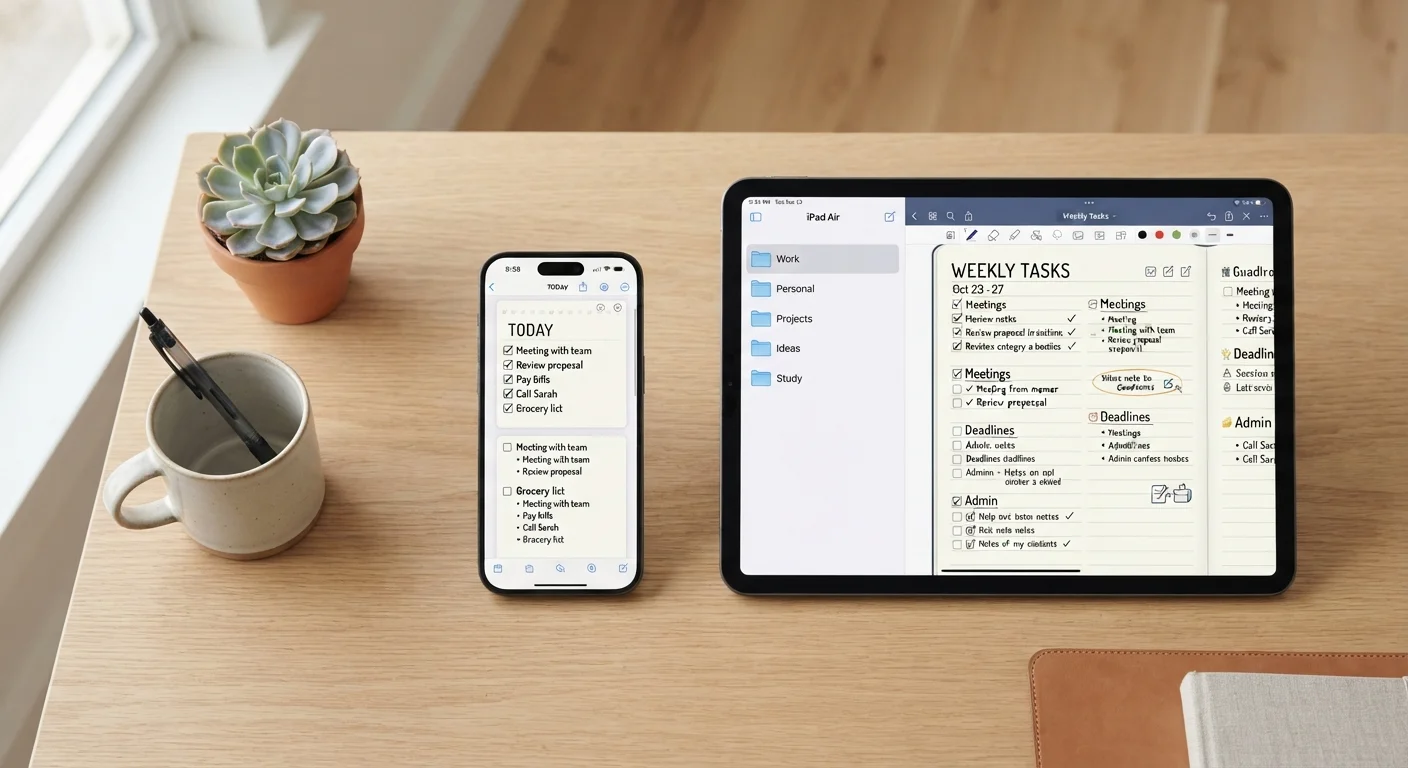
Checklists also sync across devices in real time on most platforms, which means a shared grocery list updates for everyone who has access to it the moment you check something off.
Scan documents directly into a note
Instead of photographing a receipt or form and leaving it in your camera roll, use your notes app's built-in scan feature. On most devices, this is a camera or attachment icon inside an open note. The scanner automatically straightens and crops the image, and the resulting file stays attached to the note where you can label and find it.
Scanned text in many apps is also searchable, meaning you can type a word from a scanned document into the search bar and the app will surface it.
Lock notes that contain sensitive information
Notes apps on major platforms let you lock individual notes behind your device passcode, fingerprint, or face authentication. Open the note, tap the share or options menu, and look for a lock option. Only that note becomes protected; the rest of your notes stay normally accessible.
Use this for notes that contain passwords, account numbers, or personal identification details. Locking a note does not move it to a separate app, so it stays findable in your existing folder structure.
Share a note instead of copying and pasting its contents
When you need to send information to someone else, open the note and use the share button to send them a link or a copy. The recipient can view the current contents of the note, and on some platforms they can collaborate and add their own edits in real time.
This replaces the habit of copying a note's text into a message, which creates a disconnected copy that goes out of date the moment you update the original note.
Use search before you browse
The search bar in most notes apps searches across all folders, note bodies, and even scanned document text at once. Typing a keyword is almost always faster than opening folders manually. Make search your first move when you cannot remember where you saved something.
Keeping your system working over time
The biggest reason notes systems fall apart is inconsistency in naming. If you sometimes write "grocery" and sometimes write "shopping," search will split your results. Pick one term per category and use it every time.
Set a short weekly review, even five minutes, to move completed checklists to an archive folder and retitle any notes you saved with a vague name. A note titled "ideas from Tuesday" is nearly unsearchable two months later; "home office layout ideas" is not.
If your device backs up to a cloud service, your notes sync automatically across devices you own. That means a note you start on your phone is available on a tablet or laptop without any extra steps, as long as you are signed into the same account on each device.